Seamless file sync with native Windows system tray integration for Windows 10 and 11.
The DotNetCloud desktop client integrates naturally with Windows, sitting in your system tray and keeping files synchronized in the background. Built with Avalonia for excellent Windows 10 and 11 compatibility with a modern, native appearance.
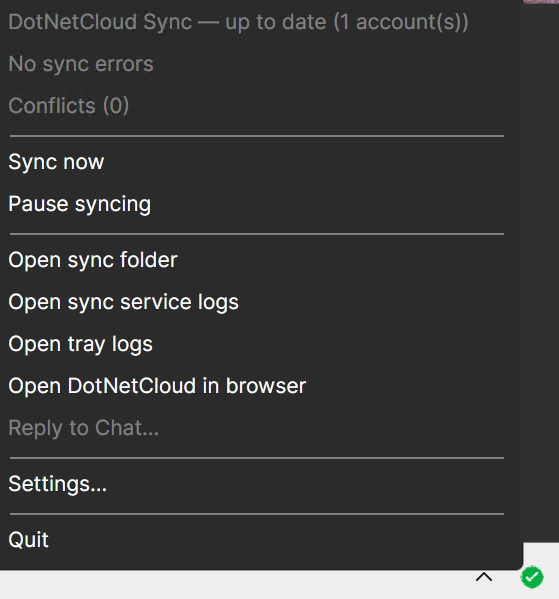
The system tray icon gives you instant visibility into the sync status.
All files synced. Green checkmark.
Transfer in progress. Blue spinner.
Sync paused. Rebecca purple pause icon.
File conflict detected. Orange branch icon.
Sync error occurred. Red warning.
No server connection. Gray ring.
Get the Windows client from
GitHub Releases.
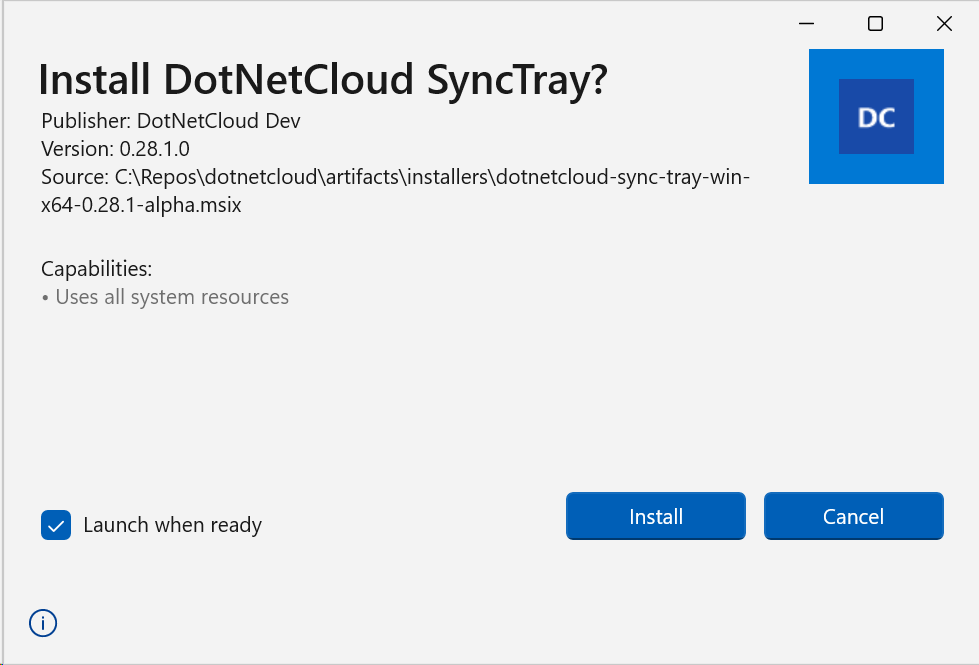
Most users should install the .msix package.
For .msix, double-click and complete the installer.
For ZIP, extract and run install.cmd from an elevated Command Prompt.
Start SyncTray, add your server URL, authenticate in browser, then pick a local sync folder.
The installer creates a per-user startup entry so SyncTray launches automatically at sign-in.
Advanced mode is for admins who want explicit control over install paths, service lifecycle, and scripted upgrades.
Advanced prerequisites: run installer commands in an elevated shell, expect script-based installs under C:\Program Files\DotNetCloud\DesktopClient, and keep the previous ZIP/MSIX artifact available so you can roll back quickly if post-upgrade checks fail.
# Download and extract installer bundle
Invoke-WebRequest https://github.com/LLabmik/DotNetCloud/releases/latest/download/dotnetcloud-desktop-client-win-x64.zip -OutFile dotnetcloud-desktop-client-win-x64.zip
Expand-Archive dotnetcloud-desktop-client-win-x64.zip -DestinationPath .\win-x64 -Force
Set-Location .\win-x64
# Preferred: CMD-first installer (no execution-policy dependency)
cmd /c install.cmd
# Alternative PowerShell installer with explicit path
# .\Install-DesktopClient.ps1 -InstallPath "C:\Program Files\DotNetCloud\DesktopClient"
# Windows service (created by script install mode)
Get-Service DotNetCloudSync
# MSIX package check (if using MSIX install path)
Get-AppxPackage -Name DotNetCloud.SyncTray
# Startup shortcut created for current user
Test-Path "$env:APPDATA\Microsoft\Windows\Start Menu\Programs\Startup\DotNetCloud SyncTray.lnk"
# Launch MSIX app
Start-Process "shell:AppsFolder\DotNetCloud.SyncTray_xrs2wr7p8d2rc!SyncTray"
# Or launch script-installed tray executable directly
Start-Process "C:\Program Files\DotNetCloud\DesktopClient\SyncTray\dotnetcloud-sync-tray.exe"
Upgrade by rerunning install.cmd or Install-DesktopClient.ps1
with the new release bundle. Use uninstall.cmd (or
Uninstall-DesktopClient.ps1) for complete cleanup.
Windows 11 hides some tray icons by default. Go to Settings → Personalization → Taskbar → Other system tray icons and toggle DotNetCloud to On.
Add your DotNetCloud sync folder and the client executable to your antivirus exclusion list. Some security software can interfere with filesystem monitoring and chunked uploads.
If you're behind a corporate proxy, ensure the proxy allows WebSocket connections to your DotNetCloud server. Check your server URL uses the correct protocol (https://) and port number.
Client logs are stored at %LOCALAPPDATA%\DotNetCloud\logs\.
Include these logs when reporting issues.