Bidirectional file sync with a native system tray application for Linux desktops.
The DotNetCloud desktop client runs quietly in your system tray, keeping your files synchronized between your Linux desktop and your DotNetCloud server. Built with Avalonia for a native look and feel on any Linux desktop environment.
The system tray icon changes to reflect the current sync status at a glance.
All files synced. Green checkmark.
Files in progress. Blue spinner.
Sync paused by user. Rebecca purple.
File conflict detected. Orange branch icon.
Sync error. Red warning.
No server connection. Gray.
Download the latest Linux desktop bundle from GitHub Releases.
# Download and unpack the latest Linux client bundle
wget https://github.com/LLabmik/DotNetCloud/releases/latest/download/dotnetcloud-desktop-client-linux-x64.tar.gz
tar -xzf dotnetcloud-desktop-client-linux-x64.tar.gz
cd linux-x64
Run the provided installer script. It places binaries under
/opt/dotnetcloud-desktop-client and installs a
dotnetcloud-sync systemd service.
sudo ./install.sh
Start the tray app in your desktop session, then add your server account in Settings. Authentication opens in your browser and returns to the client.
dotnetcloud-sync-tray
In the tray app, open Settings -> General and enable Start DotNetCloud Sync at graphical login.
Advanced mode exposes service-level verification, custom install path awareness, and upgrade/rollback-friendly workflows.
Advanced prerequisites: run install steps with root privileges (sudo), expect binaries under /opt/dotnetcloud-desktop-client and the launcher at /usr/local/bin/dotnetcloud-sync-tray, and keep a copy of your current release bundle so you can roll back quickly if a new build fails validation.
# Download artifact and checksum from the same release
wget https://github.com/LLabmik/DotNetCloud/releases/latest/download/dotnetcloud-desktop-client-linux-x64.tar.gz
wget https://github.com/LLabmik/DotNetCloud/releases/latest/download/dotnetcloud-desktop-client-linux-x64.tar.gz.sha256
# Validate before installation
sha256sum -c dotnetcloud-desktop-client-linux-x64.tar.gz.sha256
# Extract and inspect bundle contents
tar -xzf dotnetcloud-desktop-client-linux-x64.tar.gz
cd linux-x64
ls -la
# Install binaries + systemd service
sudo ./install.sh
# Confirm service state and boot persistence
sudo systemctl status dotnetcloud-sync --no-pager
sudo systemctl is-enabled dotnetcloud-sync
# Optional: tail service logs while testing sync
sudo journalctl -u dotnetcloud-sync -f
/opt/dotnetcloud-desktop-client//usr/local/bin/dotnetcloud-sync-traydotnetcloud-sync (auto-start enabled)Re-run the installer with a newer release bundle. The script replaces binaries in place and preserves existing account/sync configuration.
# Repeat on every update
sudo ./install.sh
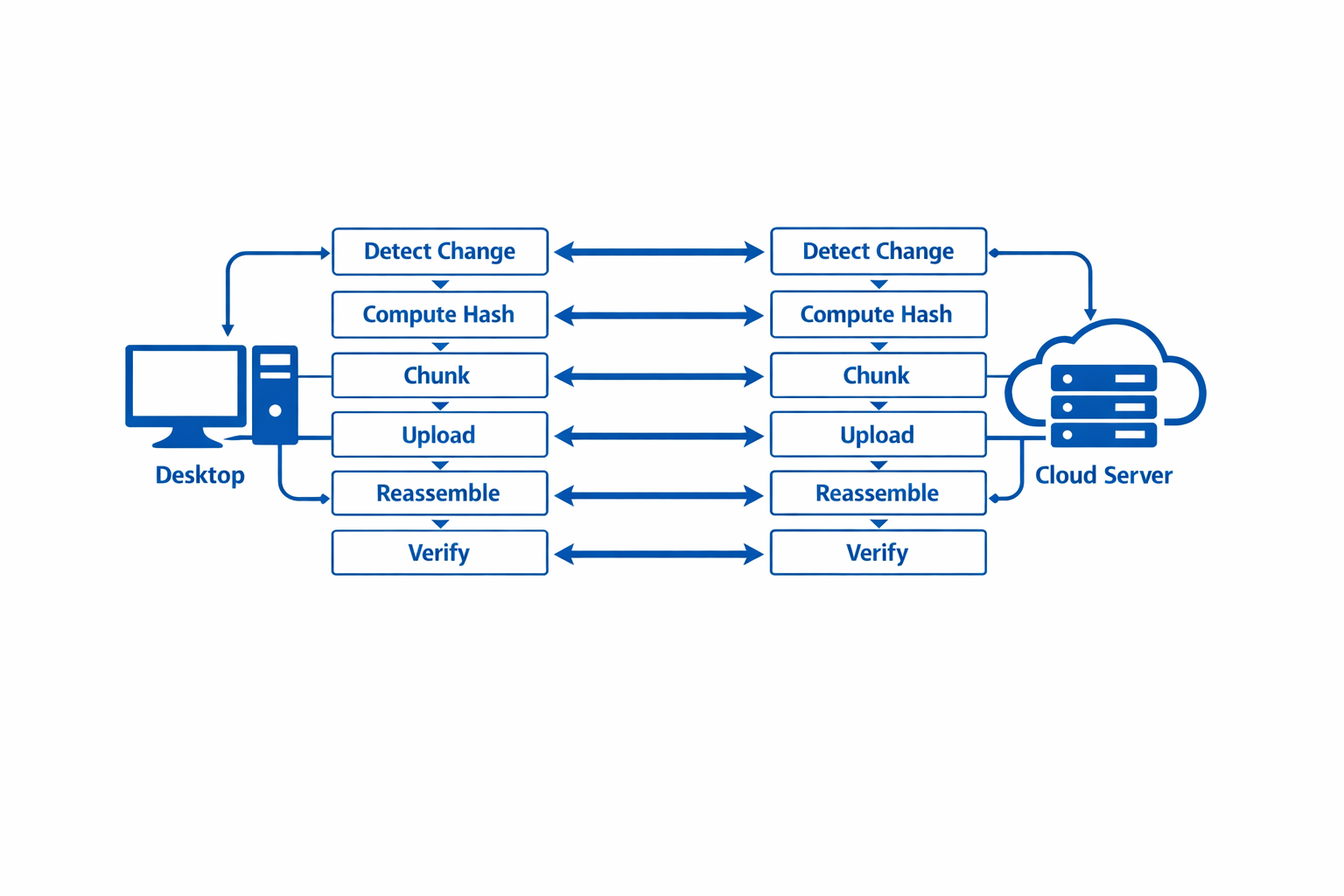
The sync engine monitors your local folder for changes using filesystem events. When a file changes, it calculates a SHA-256 hash, checks if the server already has that content, and only uploads what's new or different.
If the same file changes on both your desktop and the server simultaneously,
neither version is lost. The client creates a conflict copy (e.g.,
report (conflict 2026-03-31).docx) so you can review and merge manually.
Some Linux desktop environments (especially GNOME) don't show tray icons by default. Install the AppIndicator extension for GNOME Shell, or switch to a desktop with native tray support (KDE Plasma, Cinnamon, XFCE).
Verify that your server URL is correct and that the server is reachable from your desktop. Check firewall rules on both the server and your local machine. If using a reverse proxy, ensure it's forwarding WebSocket connections correctly (needed for SignalR).
Initial sync indexes all files and may take time depending on the number of files.
Subsequent syncs only transfer changes and are much faster.
Check ~/.config/dotnetcloud-client/logs/ for detailed sync logs.
Check the client documentation on GitHub or open an issue if you encounter a bug.